



Dr Neel Barchha
Director / Lead Clinician at Willows Dental and Implant Centre in Wombourne.

Dr Neel Barchha
Director / Lead Clinician at Willows Dental and Implant Centre in Wombourne.
Simply edit
Simply click the text / replace the image to edit this.
Who is Neel
Family Man & Philanthropist
Dedicated to his family, friends and making a positive impact in the community.
- Two happy, teenage boys – aged 13yrs & 16yrs.
- Two Burnese Mountain Dogs.
- One amazing partner.
- Neel is deeply passionate about charity work and is committed to making a positive impact in communities.
Lead Dental Clinician
A skilled lead dental clinician, combining expertise with compassionate care.
- Leads an award-winning dental practice, specialising in nervous patient care.
- Specializes in advanced dental treatments and procedures.
- Follows a patient-centered approach for the best care experience.
Director & Entrepreneur
A dynamic business director, leading with vision, strategy, and innovative solutions.
- Drives business growth and operational excellence.
- Fosters a culture of innovation and continuous improvement.
- Builds and nurtures strong professional relationships.
- Ensures success through a results-driven approach.
Simply edit
Simply click the text / replace the image to edit this.
The Traveller
Neel is a global traveler, exploring diverse cultures, landscapes, and cuisines.
His journeys take him across continents, immersing in new experiences, meeting people, and embracing the beauty of the world.

Media
Image Gallery
Image Gallery Instructions
Images are populated dynamically from the Media library.
Images required in this gallery need to be added to the following folder:
Media > Images Auto.
To add or remove – simply add or remove from the ‘Images Auto’ folder.
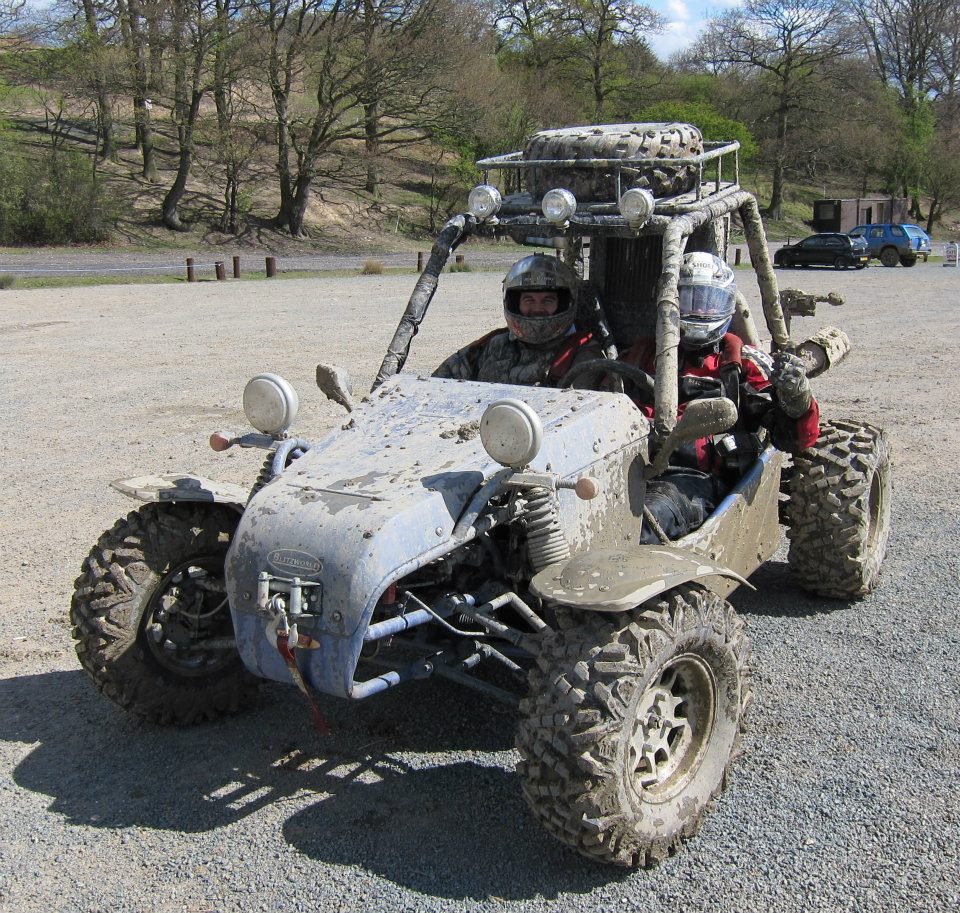
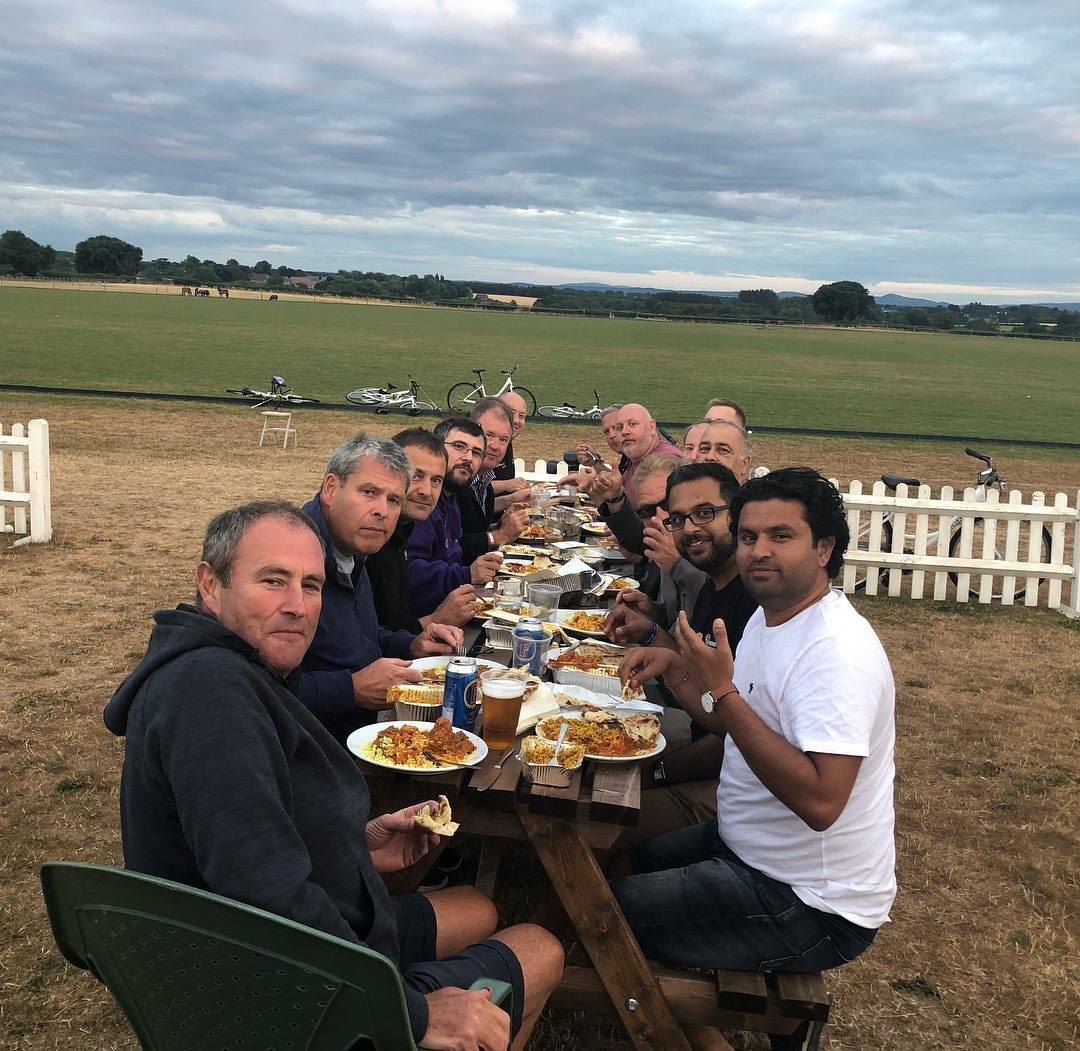

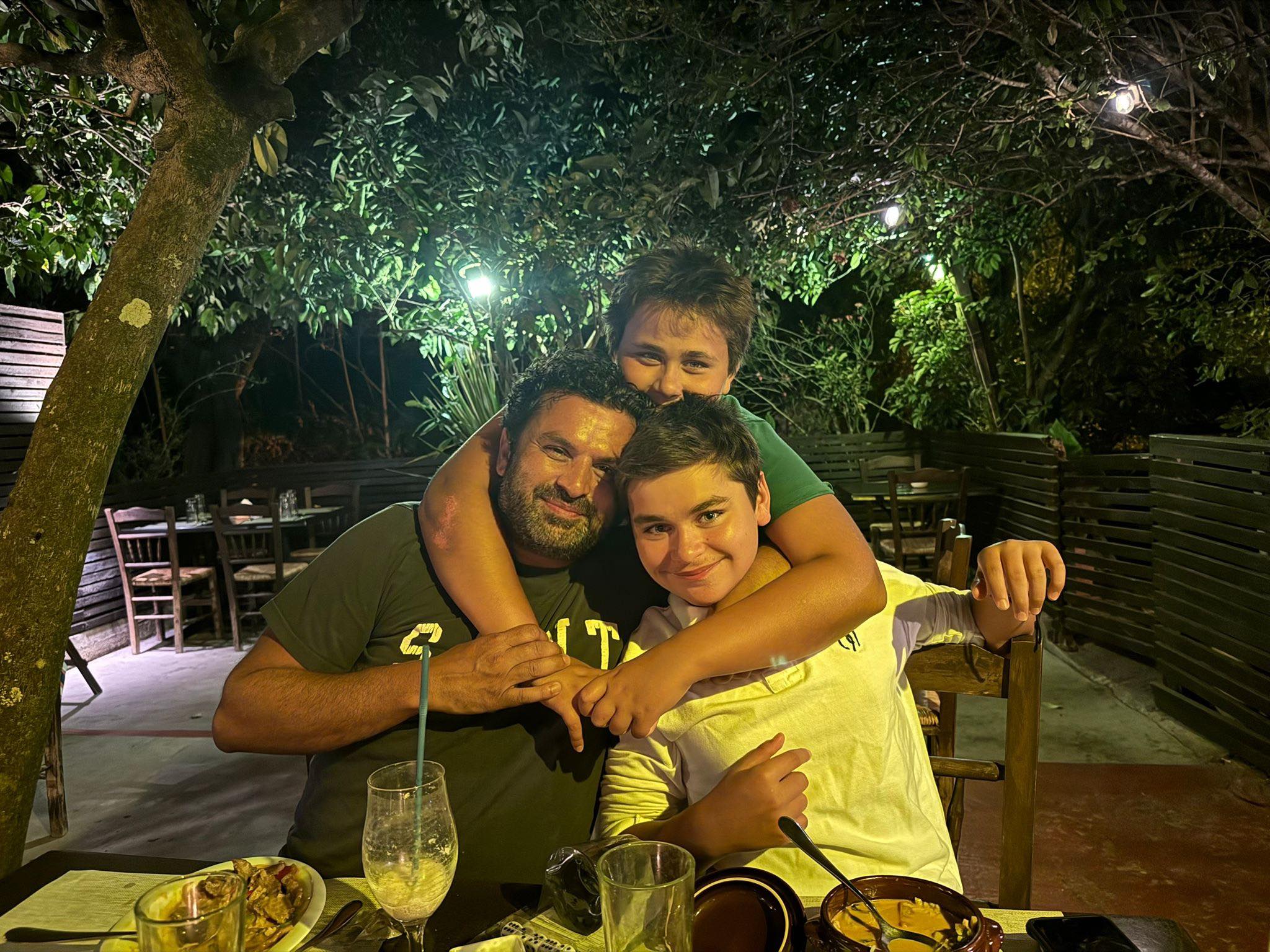
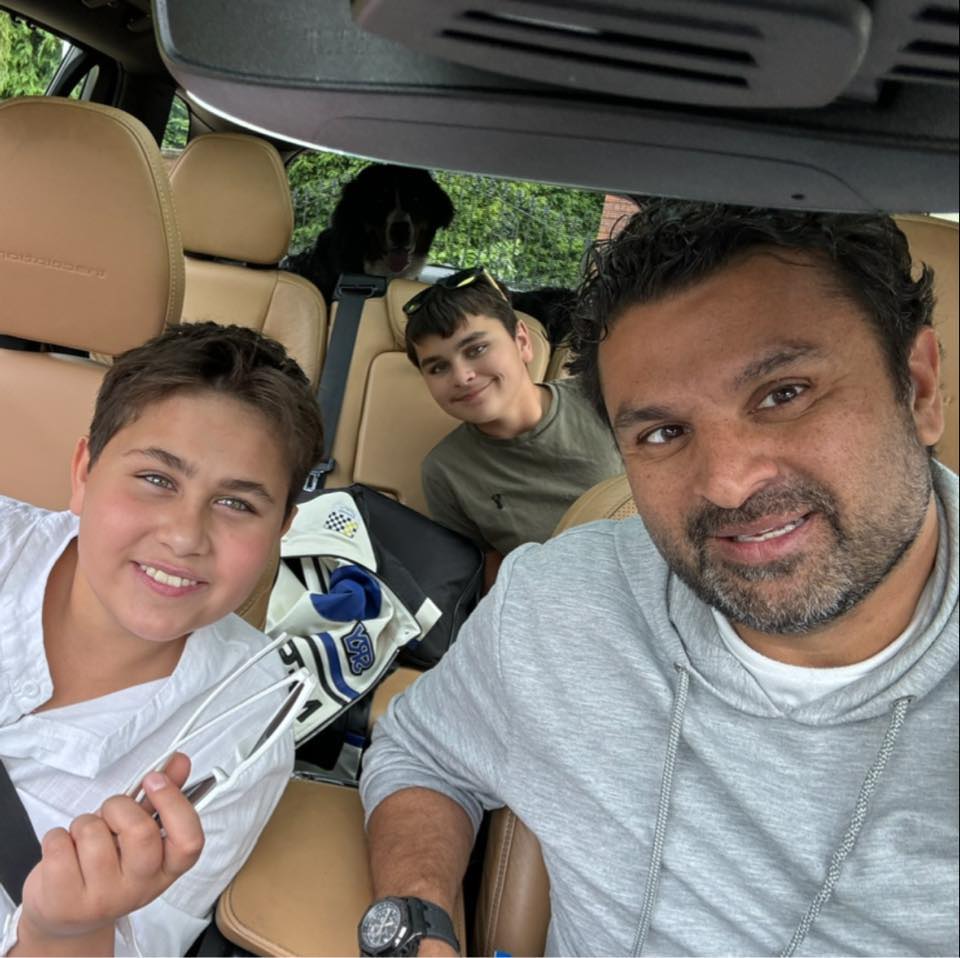
Video
Video Gallery Instructions
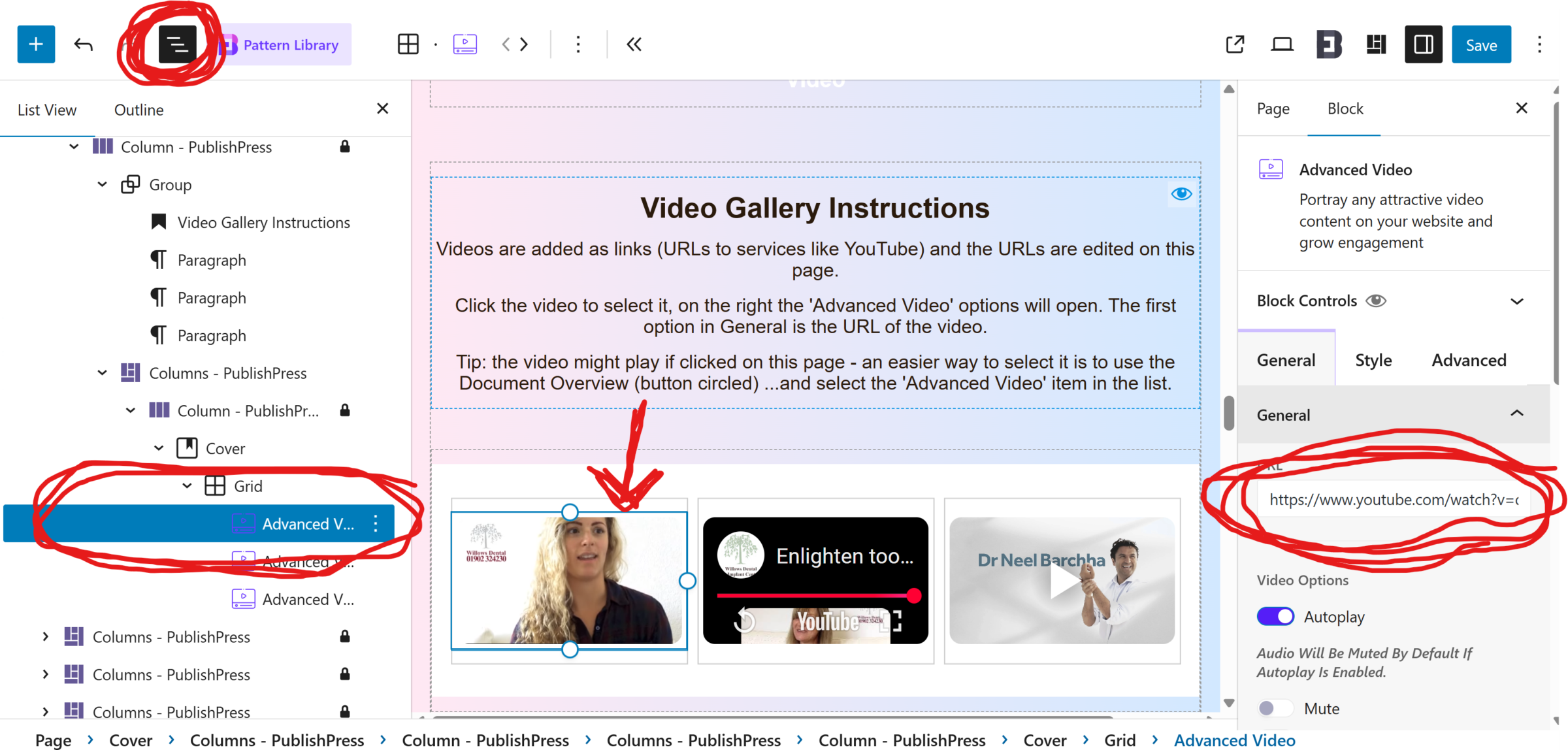
Videos are added as links (URLs to services like YouTube) and the URLs are edited on this page.
Click the video to select it, on the right the ‘Advanced Video’ options will open. The first option in General is the URL of the video.
Tip #1: the video might play if clicked on this page – an easier way to select it is to use the Document Overview (button circled top left) …which opens a list below. Once selected, the ‘Advanced Video’ options on the right will display.
Tip #2: the cover image (what is shown before the video is played) can also be changed from the Advanced Video > General controls (select the video, choose general tab, and scroll down to ‘Image Overlay’ (allowing you to choose another cover image from the media library).
Music
Music Gallery
The music gallery is powered by Spotify embeds.
To edit: simply click the item to select it, then above, click the little pencil icon to edit the URL.
To add more: click on an item and then click the three-dots above, choosing ‘duplicate’ to add a copy, then change the Spotify URL of the new item. The ‘three-dots’ option can also be used to delete items.
Podcasts
Podcast (MP3) Gallery
Podcasts are edited here, from uploaded MP3 files + cover images.
To edit: change the title text here – select the image and choose ‘replace’ (choosing another image from the media library), then select the audio control and choose ‘replace’ (choosing another MP3 file from the media library).
To add more: duplicate the group (which contains the image, title and audio).
To remove: choose the group, then use the ‘three-dots’ option to delete.
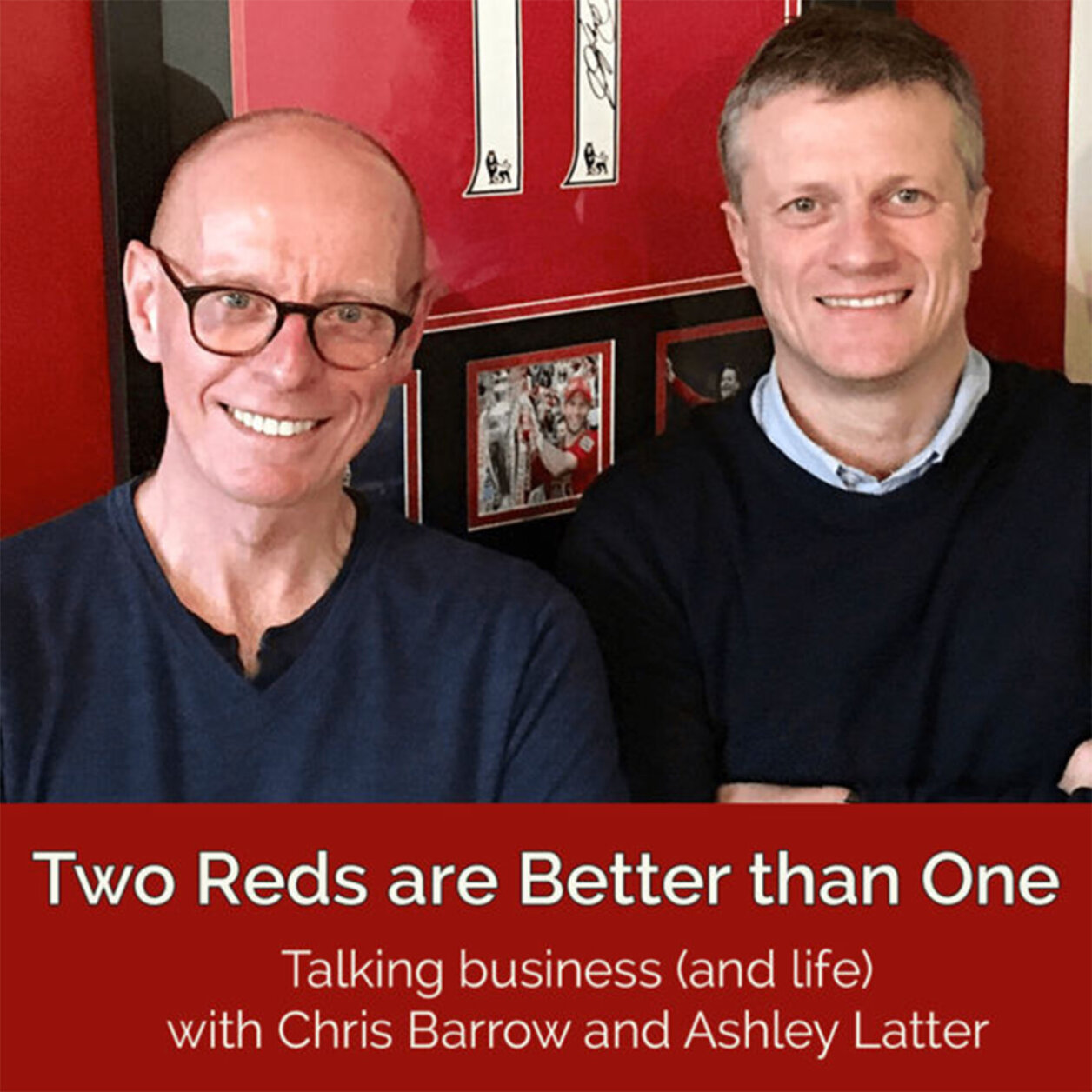
Two Reds are Better than One
Two Reds are Better than One
Blog
Blog Posts
Blog posts are dynamically add – and not directly edited from this page.
Adding a new Post: is done via Posts (clicking the ‘Posts’ button in the main menu). In the Posts list, duplicate an existing post (so you keep the same formatting) and replace the content as needed.
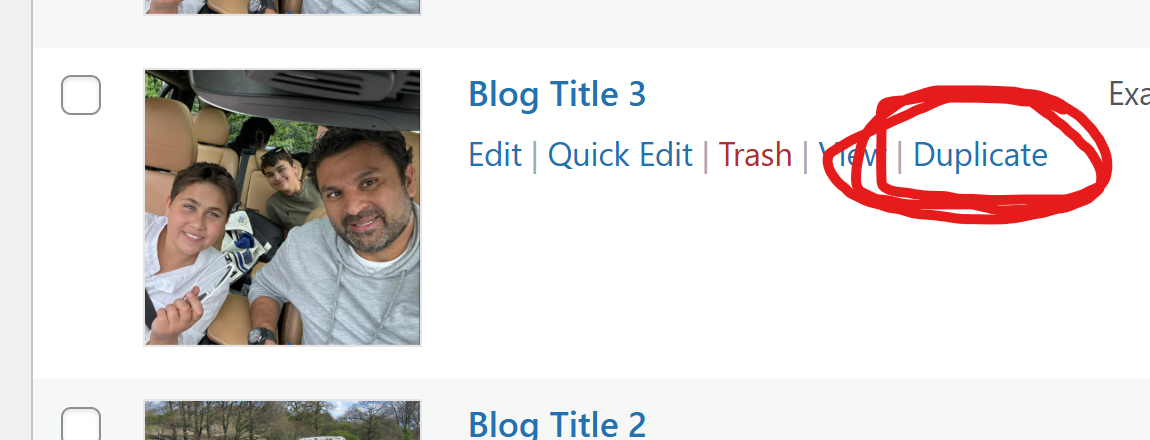
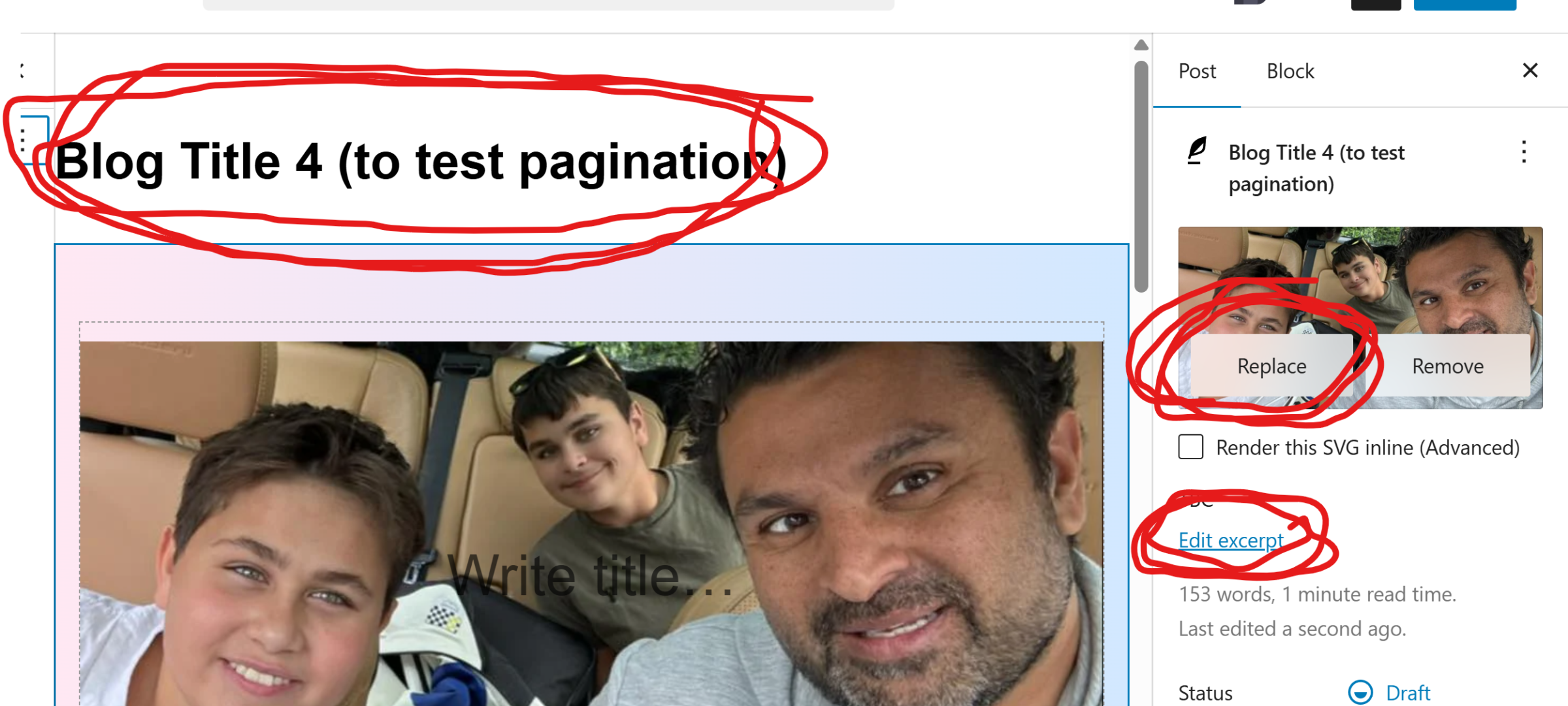
When duplicated, you will be taken to the new Post. On the new (duplicated) Post, you first need to edit the title, replace the cover image, and change the excerpt (these are the three elements seen on the home page).
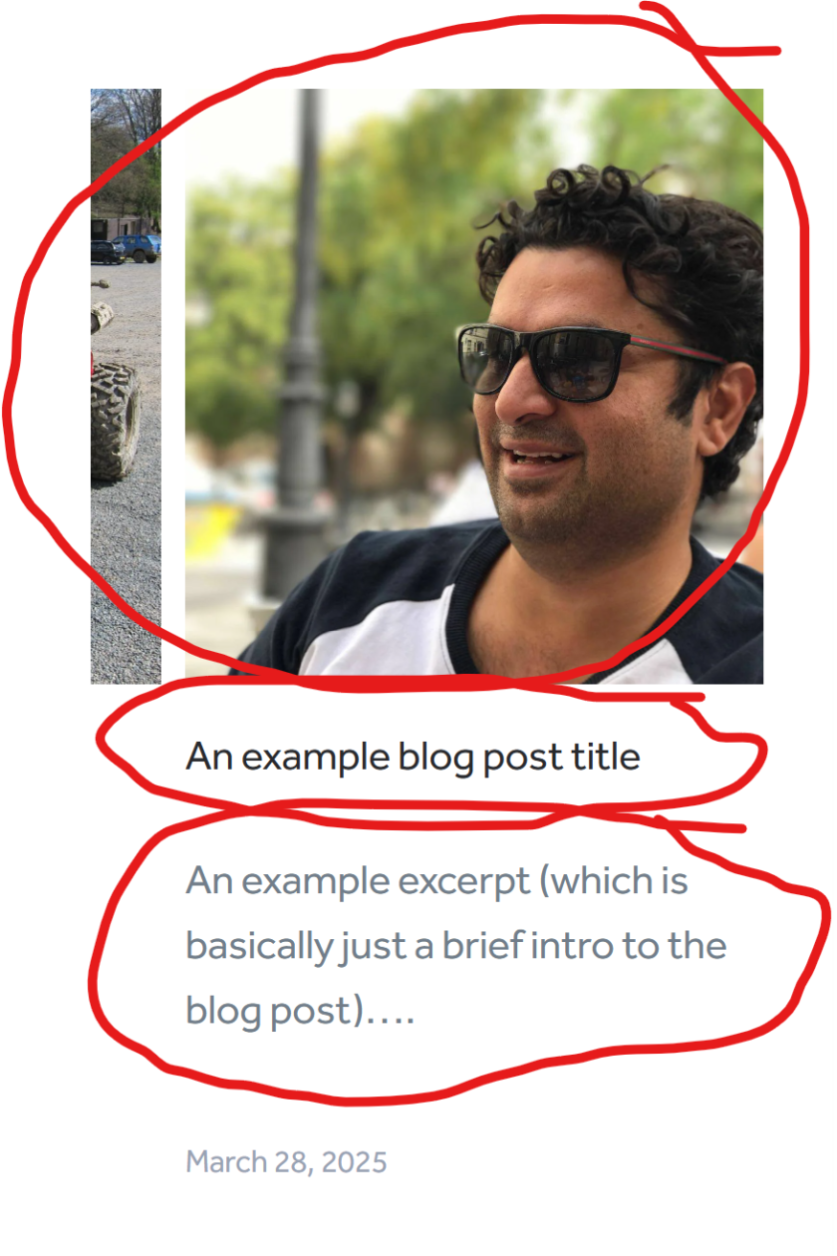
Next you need to edit the content of the blog post – simply by changing the text. You can of course add more in here too. Like additional images or galleries etc (once you are confident with using Gutenberg blocks).
To remove: simply visit the Posts list, and click the ‘Trash’ option.
Links
<<<< edit in ‘Posts’ menu (category = Link)
-
-
-
-
-
Example link title #5
Excerpts are found in the right column on the page editor…
-
<<<< edit in ‘WP Testimonials’ menu
[sp_testimonials_slider limit=”-1″ speed=”1500″ autoplay_interval=”5000″ display_client=”false” display_job=”false” dots=”false” arrows=”false” display_avatar=”false” display_quotes=”false” adaptive_height=”false”]<< edit in ‘Contact’ menu